

Follow these steps to access ClaudeAI via cPanel and make your updates:
1. Whitelist Your IP and Log In #
Because the backend is IP-restricted, please share your public IP address with us first. (You can easily find your IP by visiting whatismyipaddress.com). Once we confirm your IP is whitelisted, log in to the staging site’s cPanel account using the secure credentials provided to you.
2. Open the cPanel Terminal #
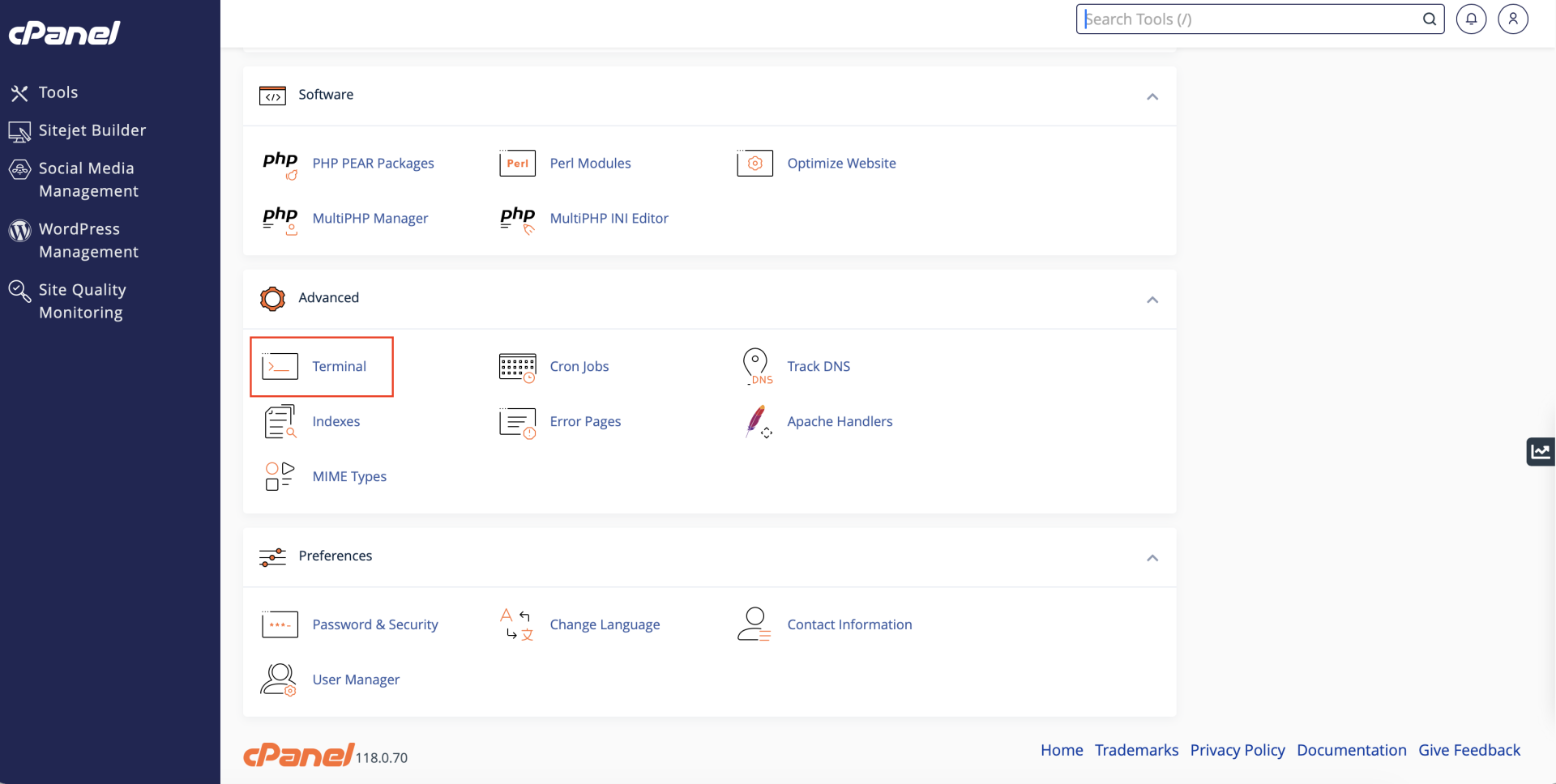
Once logged into cPanel, navigate to the “Advanced” section and click on “Terminal.”
3. Launch ClaudeAI #
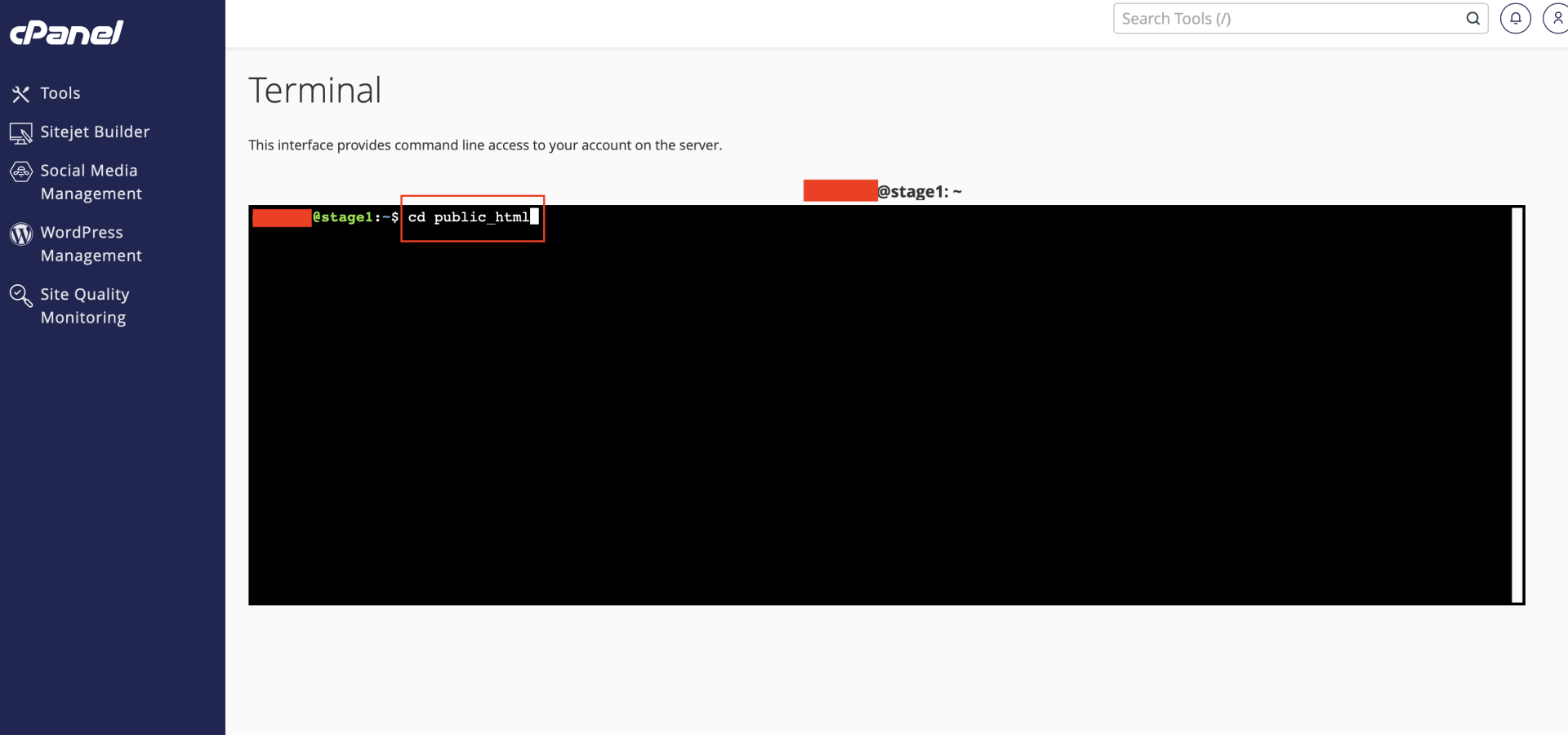
In the Terminal, type cd public_html and press Enter. This will take you to the site’s main directory.
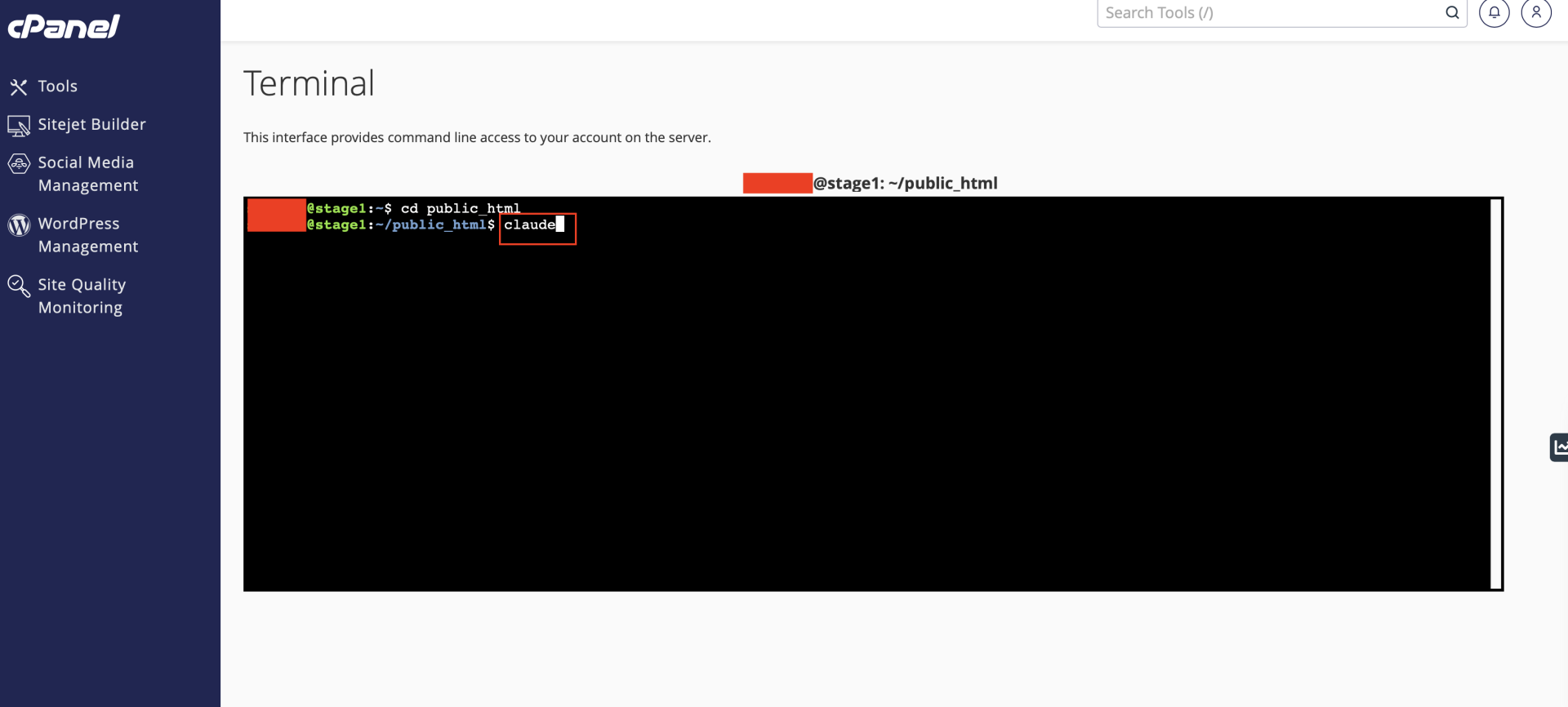
Next, type claude and press Enter. This will open the ClaudeAI code interface, where you can now make your changes.
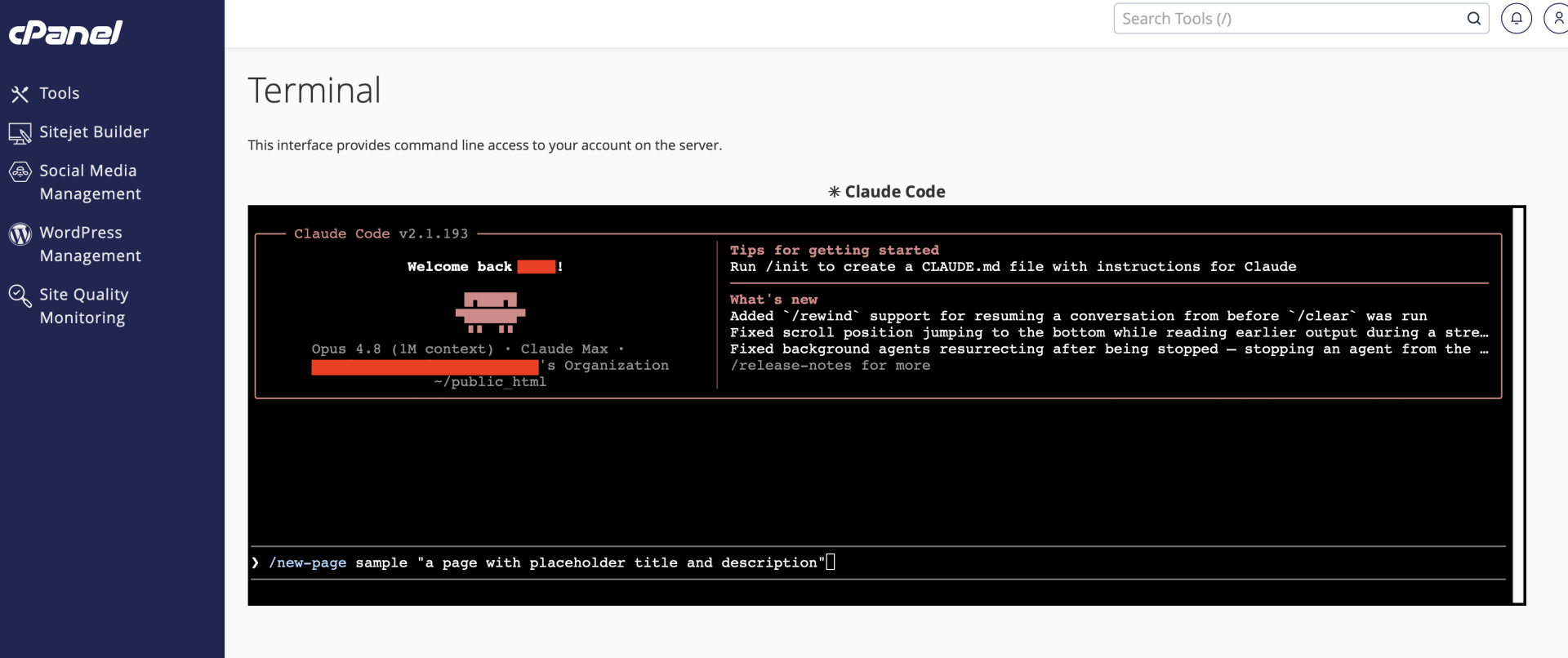
Note on New Pages: If you are creating a new page, start your prompt by typing /new-page [your page name] followed by the instructions for the page’s content. This ensures you can still use the global header and footer we’ve created.
4. Commit and Request Deployment #
Once you’ve finished making your changes, instruct Claude to commit all your updates to the Git repository. After the changes are successfully committed to Git, simply send our team a message so we can pull your changes from the repository and push them to the live site.
5. View the Staging Site #
For security, the frontend of the staging site is password-protected to prevent unauthorized access. We will share a secure, one-time link containing the username and password. Please save your login details securely on your device, as the link is only good for 24 hours and can be viewed once.


